> ## Documentation Index
> Fetch the complete documentation index at: https://hbx-docs.uplifthub.io/llms.txt
> Use this file to discover all available pages before exploring further.
# Sign Up and Sign In
export const Ui = ({children}) =>
{children}
;
export const Pill = ({tone = "live", children}) =>
{children}
;
Before you can build a campaign you need either an HBX Partner Portal account or have been pre-approved for sign up by an HBX representative. If you already have a Partner Portal account you can either access the Self Serve platform via a button directly in the Partner Portal or by clicking the **Sign in via HBX Partner Portal** button on the login page. If not, register a new account or request access.
## Registering a new account
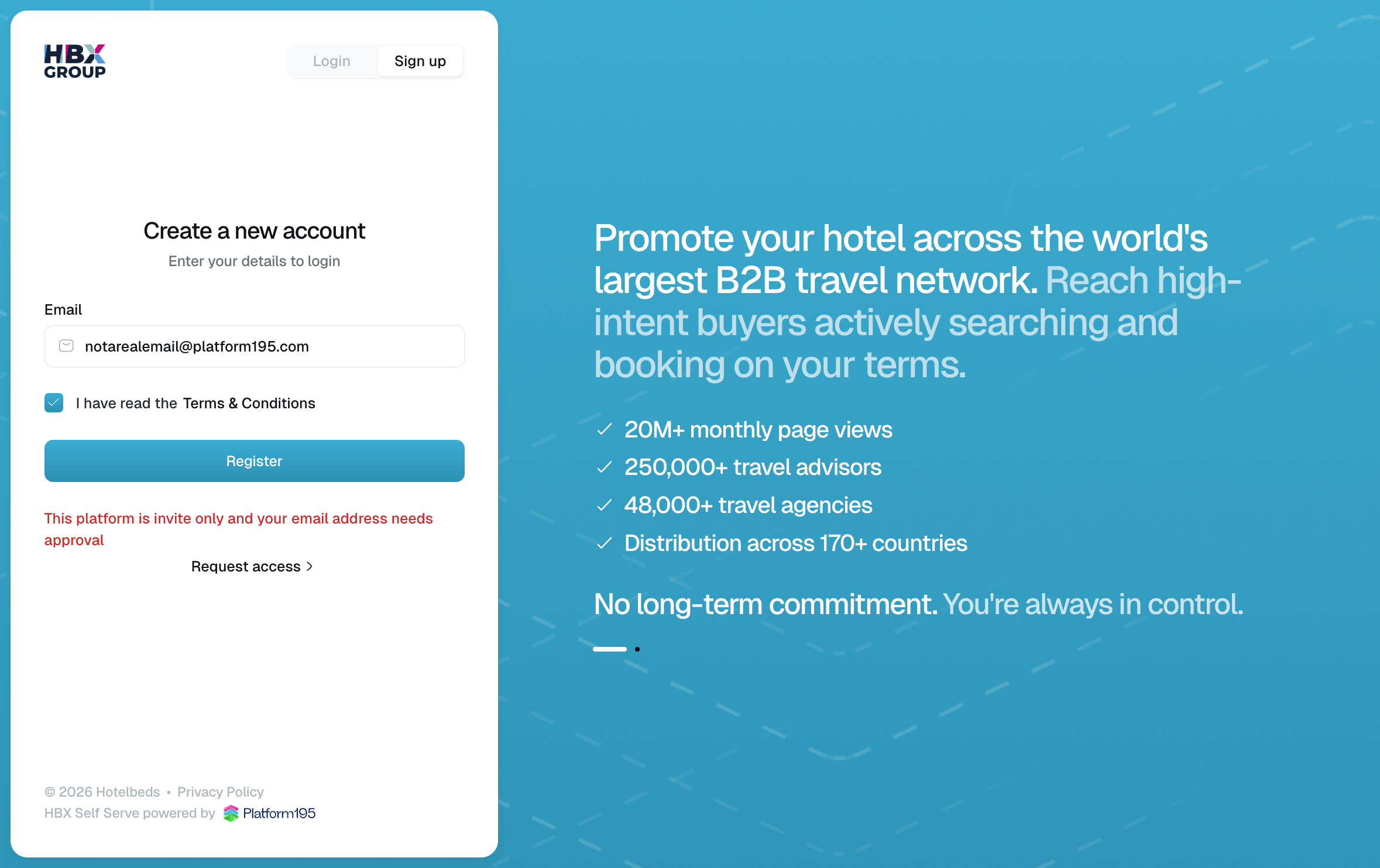
Go to the portal and select the Sign up tab at the top of the login panel.
Go to the Self Serve App and select the Sign up tab at the top of the login panel.
Provide your **Email**. Tick **I have read the Terms & Conditions** to continue.
Click RegisterYou will be sent an email to set your password and complete your registration.
If your organisation isn't approved for self-serve access yet, click "Request Access" instead and the team will be in touch.
 ## Signing in
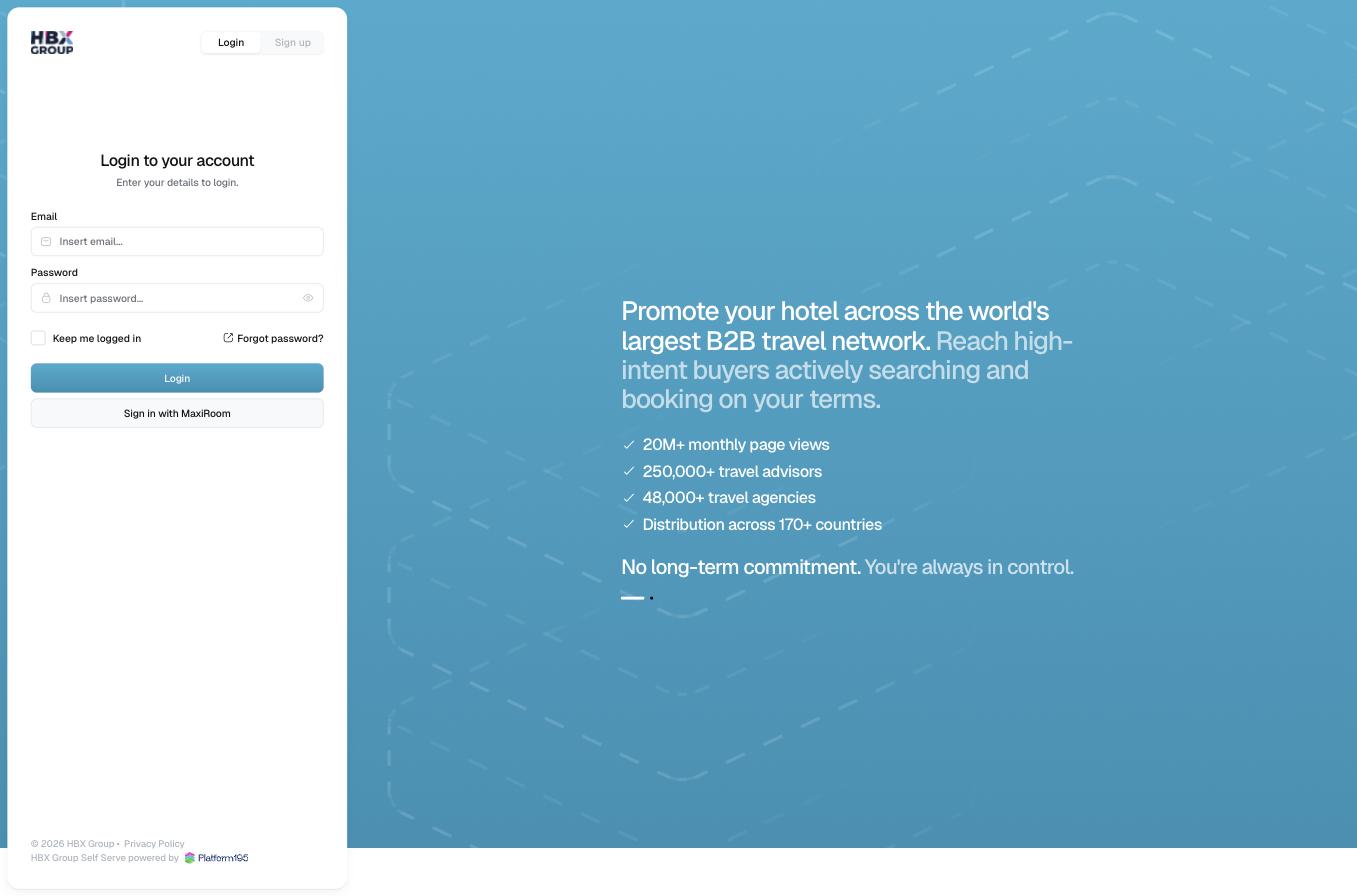
Go to the portal and make sure the Login tab is selected.
Go to the Self Serve App and make sure the Login tab is selected.
Enter your **Email** and **Password**. Tick Keep me logged in if you're on a trusted device.
Click LoginYou can also use Sign in with … if single sign-on is enabled for your organisation.
Forgotten your password? Use Forgot password? on the login screen and follow the link sent to your inbox.
## Signing in
Go to the portal and make sure the Login tab is selected.
Go to the Self Serve App and make sure the Login tab is selected.
Enter your **Email** and **Password**. Tick Keep me logged in if you're on a trusted device.
Click LoginYou can also use Sign in with … if single sign-on is enabled for your organisation.
Forgotten your password? Use Forgot password? on the login screen and follow the link sent to your inbox.