> ## Documentation Index
> Fetch the complete documentation index at: https://hbx-docs.uplifthub.io/llms.txt
> Use this file to discover all available pages before exploring further.
# Select Hotel
export const Ui = ({children}) =>
{children}
;
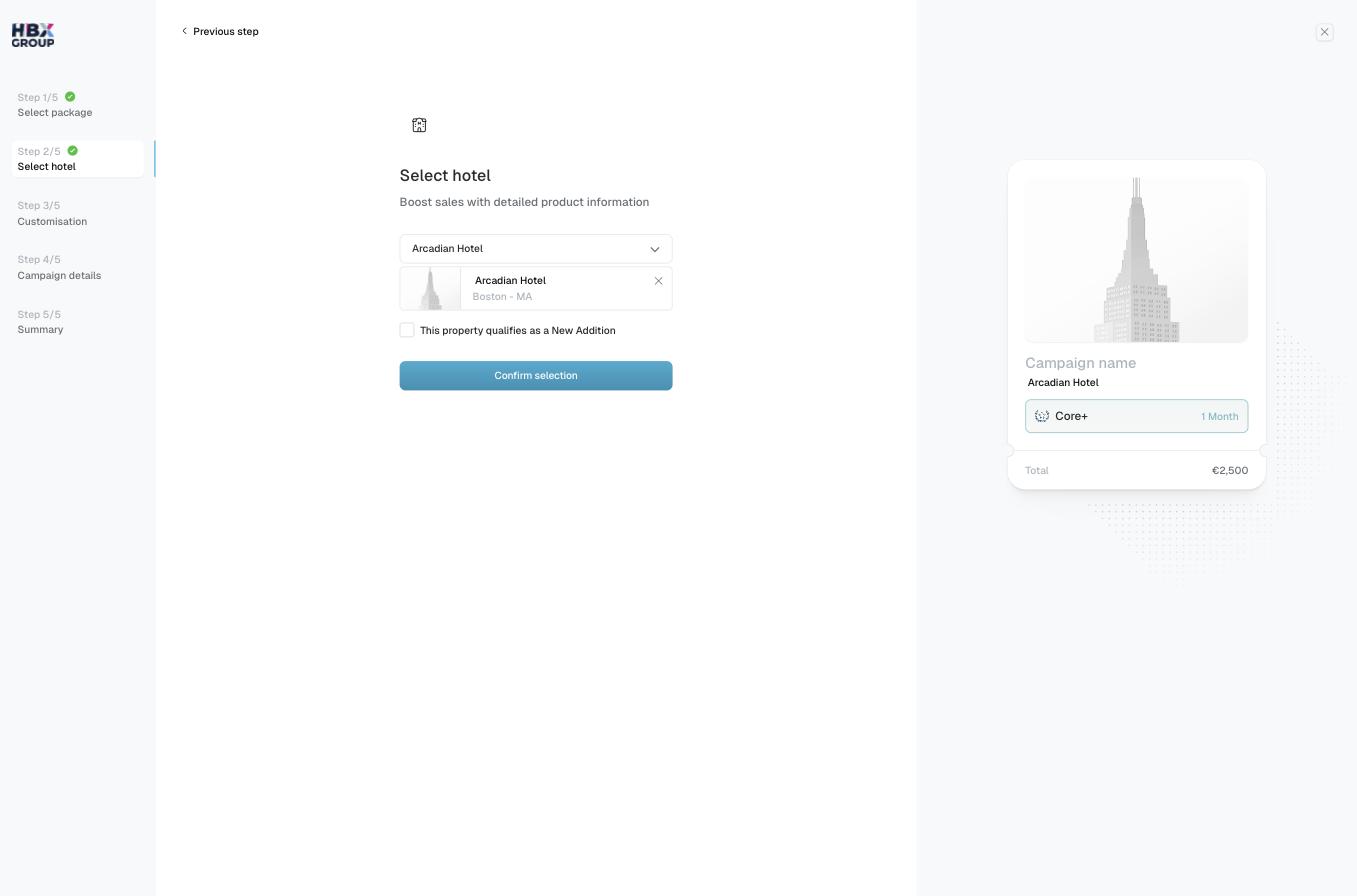
This step links the campaign to a specific property. The hotel you pick appears on the preview card and on every screen of the campaign from here on.
Click the **Select…** dropdown and choose the property you want to promote. The selected hotel appears below with its name and district.
Tick **This property qualifies as a New Addition** if it applies to your hotel.
Click Confirm selection to continue to customisation.
Not sure whether your property qualifies as a New Addition, or can't find your hotel in the list? Check with your account manager — see [Get help](/reference/support).